Connect your storage
This is the single most important setup step. 4ShootOps stores every file — your footage and finished deliverables — in your own cloud storage bucket, not on our servers. You bring your own storage (BYO), connect it once here, and you own your data outright. If you ever leave, your files stay exactly where they already are.
Warning
Uploads are disabled until you connect a storage bucket. No connection means no files can be uploaded to projects, so make this your first setup task.
What you can connect
4ShootOps works with any S3-compatible provider. Common choices:
- Wasabi — flat-rate, no egress fees
- Backblaze B2 — inexpensive, popular for archives
- Cloudflare R2 — zero egress fees
- iDrive e2 — low-cost S3-compatible
- Amazon S3 — the original, most regions
Self-hosted S3-compatible storage (SeaweedFS, MinIO on your own NAS) also works via a custom endpoint.
Add a connection
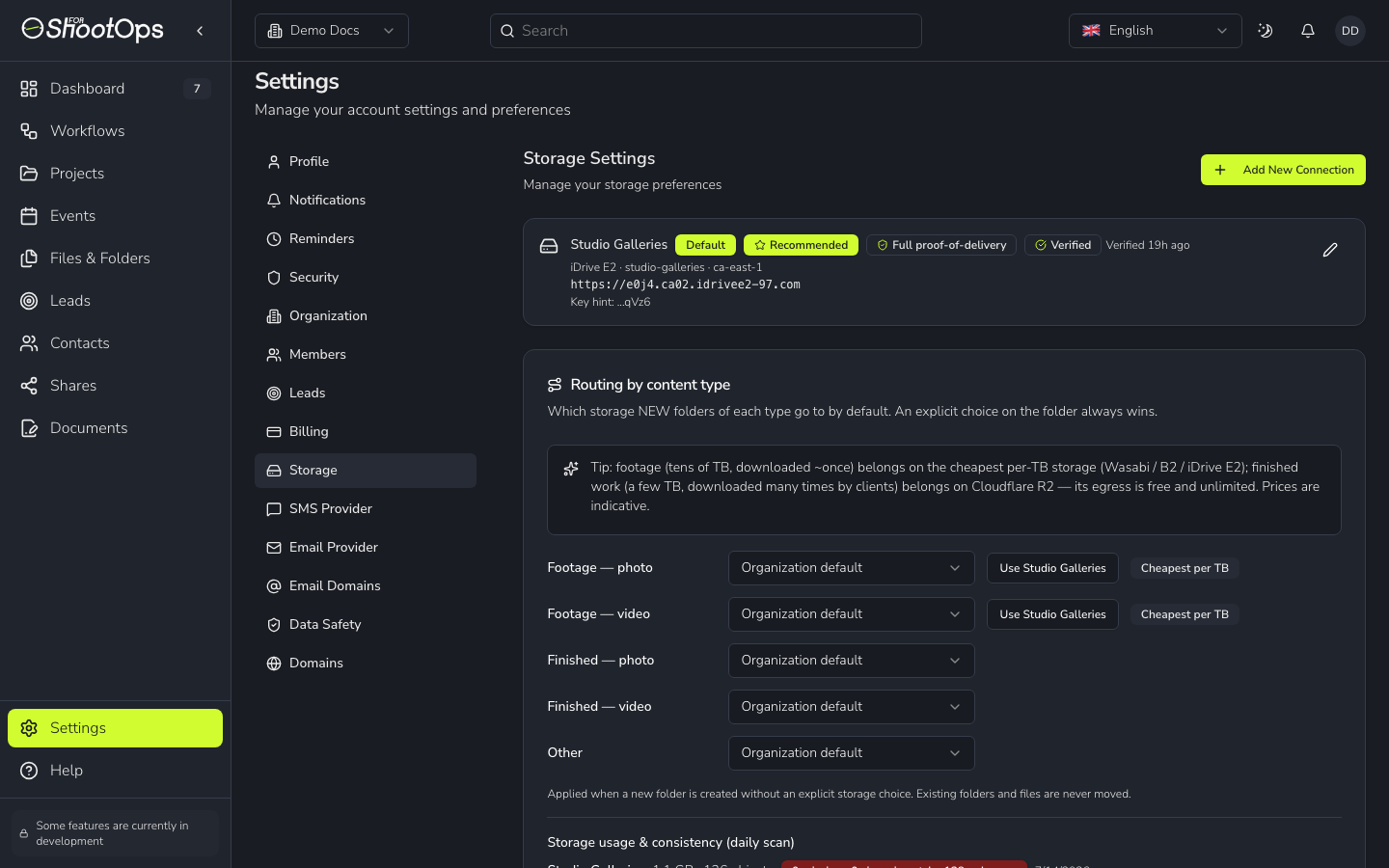
Open Add New Connection
On Settings → Storage, click Add New Connection ① to open the wizard.
Pick your provider
Choose your provider (Amazon S3, Cloudflare R2, Backblaze B2, iDrive e2, or Custom S3-compatible). Custom reveals an Endpoint URL field for self-hosted storage.
Enter bucket details
Give the connection a name, then fill in region, bucket name, Access Key ID, and Secret Access Key. Use a scoped, least-privilege key created just for 4ShootOps.
Test and save
Run Test Connection to confirm the credentials reach the bucket, then save. Your secret key is encrypted before it is stored and is never shown again.
After connecting
Your first connection becomes the default — new uploads land there. You can add more connections later and switch which one is default; changing the default only affects new files. Existing files keep pointing at the bucket they were written to.
Tip
Use Test Connection to catch problems before you invite your team. If uploads still don't work after a successful test, your provider may need a quick CORS setting on the bucket — the wizard can guide you.
See also: Files & folders · Sharing with clients